Showing posts with label Google Tip. Show all posts

Thursday, February 18, 2021

Embed a Drawing IN a Doc

WEBSITE
  
LINK to blog post

AUDIENCE ↬ teachers

CONTENT ↬ any/all

GRADE LEVELS  all grades

I can see some of you scratching your head on this post ... but if you are using a Google doc for your students and want an "interactive" portion, you can! It just takes a little bit of thinking to ensure you keep the interactive part available.

You probably already know you can create a Drawing for students to sort items or a t-chart they can separate on or embed a graphic organizer for digital work or any number of other reasons to provide a non-traditional space for students ... but did you know you can do all of this AND put it in your Google Doc??? Yep!

Google Drawings are the perfect space for many of the above mentioned activities. And for many teachers, Google Docs are used regularly. So let's combine the two!

Want to see it in action? I create a quick <5 min video to share the step-by-step.


And to level it up, why not teach your students how to do this, too? 


If you like this resource, be sure to check out the other resources like it tagged below.

Tuesday, February 16, 2021

Send to devices in Chrome

WEBSITE
  
No website - you can find this on a Chrome tab

AUDIENCE ↬ teachers

CONTENT general computer use

GRADE LEVELS  all grades

Chrome is my browser of choice. There are so many reasons and today's share gives me one more reason to use Chrome. I do a lot of work on my computer - and a lot of reading on my phone. Often I want to send something from one to the other.

In the "olden days" 🤣I would have to email them to myself or have them both open to copy the address. Things just got a little easier to go from my computer to my phone, or even another device. Check it out - with the ease of a 2 finger click (or a right-click) you can now do this in seconds!!!


***Please note - you need to be logged in on both devices for them to "talk" to each other.***


If you like this resource, be sure to check out the other resources like it tagged below.

Monday, February 15, 2021

Control music in Chrome

WEBSITE  n/a - available in your Chrome web browser

AUDIENCE ↬ teachers & Ss

CONTENT not applicable

GRADE LEVELS  not applicable

I was excited to see this feature in Chrome a while back! Near the extensions & the profile picture, a musical note and 3 horizontal lines appeared when I was listening to a song on YouTube.

"What is that?" I asked myself.

When I clicked on it, I discovered I could control the music right there! No need to go back to the tab that is playing the music! Woot! Woot! I have dubbed it the "music burger"!!!

Now, this isn't truly a NEED in education, but when I really get into working on my computer at home, I do love listening to music and with this update, I can easily switch through the songs that are playing. AND ... it doesn't show up when you don't have anything playing. There when you need it & gone when you don't!


If you like this resource, be sure to check out the other resources like it tagged below.

Tuesday, October 6, 2020

Need a spinner? Flip a coin? How about a metronome?!

WEBSITE no "website" ... just do a search for "spinner"

AUDIENCE ↬ teachers

CONTENT ↬ any/all

GRADE LEVELS  all grades

I read - sometimes to a point where I wonder if I'm addicted? I came across something pretty awesome that I HAVE to share. How often have you wanted something SUPER QUICK - a spinner? Roll die? Metronome? Calculator? Color picker? Flip a coin?

Well, do a quick Google search and I bet you'll find it. And ... it's FREE. And in this digital - hybrid - remote - face-to-face - whatever situation you are in, you AND your students can use these tools.

Music teachers - be sure to check out the metronome.

Math teachers - roll a die (or multiple ones) for probability lessons

Art teachers - how about that color picker? 

Science, ELA, History and other teachers, go ahead & check them all out! I bet once you start using them, you'll see that the possibilities are endless.

All of these are cool ... now here's a warning ... if you show it to your students (which I encourage) please also note there is a tab that also gives quick access to games & toys! See screenshot below. 

Wednesday, February 19, 2020

Pairing fonts

WEBSITE  Fontjoy
AUDIENCE ↬ teachers & students
CONTENT ↬ all/any

GRADE LEVELS  grades 3-ish & up

I very much enjoy creating Slides, Docs, and other material for both students and teachers. I do my best to make it pleasing to the eye while still sharing the message. I stumbled across this website and it finding what I didn't even know I was really looking for!

Fontjoy has a very simple premise ... it's a website that helps you pair fonts that work well together. If you read the "How it works" page, you find there is machine learning at work. I don't truly understand how it exactly works, but I do know that it has helped me on multiple occasions make very pleasing font combos!

Now - I don't think the youngest of students really need to worry too much about font pairings, but I do believe students in late elementary (especially ones who show solid computer skills) might benefit from understanding of how to best put fonts together. By middle school and high school, students can really benefit from this website.

And if nothing else ... help yourself out! It's fun to check out!

Tuesday, January 21, 2020

Kasey Bell's Dynamic Learning with Google

WEBSITE  It's NOT About Google (Part 1)
AUDIENCE ↬ teachers
CONTENT ↬ any/all

GRADE LEVELS  all grades

I listen to podcasts frequently. One of my favorites is the Google Teacher Tribe, hosted by Matt Miller & Kasey Bell. Each of them have their own individual podcasts - which are also great! I'm going to focus on something Kasey Shared out recently that I believe many teachers can truly benefit from. She shared out the first in a four part series on Dynamic Learning. I love how she stresses it is NOT about Google, but rather the LEARNING. She even states, "This blog post and podcast episode is NOT about Google or G Suite, but how to use these tools to support dynamic LEARNING in the classroom."

I encourage you to check it out! The blog post is great & gives you a link to the FREE download "Dynamic Learning with Google Toolkit" which is a great resource.

Do you prefer listening? You can also listen to this in a podcast format. It is episode 44 (released Jan 7, 2020) on her show "Shake Up Learning". [There is also a link to it on the blog.]

Tuesday, January 7, 2020

Omnibox Searching? Yesssss!

WEBSITE  Google.com
AUDIENCE ↬ teachers & students
CONTENT Any & all

GRADE LEVELS  all grades, especially older students & teachers

I am super excited about this update 👏!

The omnibox in Chrome (or the address bar or the URL spot) has been a place you can type in searches for awhile ... if you are searching the internet for something. This on its own might be an update for some, if you weren't already aware ... try it out ... it's AWESOME!

But NOW ... not only will the omnibox search the internet, it will also search your DRIVE! 💥 Yes! Look at the picture ... I typed "google" in and 3 of the results are from it searching my Drive:

  • the red square is a Google Drawing
  • the green square is a Google Sheet
  • the yellow square is a Google Slide
WOW! How much better can it get? Try it out ... I think you'll agree. It's awesome!

Tuesday, December 10, 2019

Slip-in-Slide

WEBSITE  Slip-In-Slide by Jeran Ott
AUDIENCE ↬ teachers
CONTENT ↬ any

GRADE LEVELS  all grades

I was floored when I heard about this add-on. 

It. Is. Amazing!

First of all, an add-on is something within a Google app (like Docs, Sheets, Slides, and Forms) that gives you the ability to do something "more". The best way to explain this add-on is to give you a use case.

As a teacher, you create a Slide deck of activities. Maybe it's a journal you want students to write in each day. Maybe it's math problems you use as a bell-ringer. Maybe it's historical dates you want students to research. Each day you, ideally, want to add another slide. You've been doing "ok" by posting the new Slide & instructing your students to copy & paste it into their Slide deck, but you've been wishing you could just do this automatically. With "Slip-in-Slide" ... you can!!!!

The link above (& at the end of this sentence) is the creator, Jeran Ott's, page for the add-on: OTT-o-matic Slip-in-Slide.

You might also want to check out the GSuite Marketplace's info page.
Also, here is a great blog about it by Julie Smith - the Techie Teacher - "A Google Slides Add-on All Teachers Need".

Check this out today. 

Tuesday, April 23, 2019

the "Golden Nugget": a Google tip

WEBSITE  n/a
AUDIENCE ↬ teachers & students
CONTENT ↬ this is a tip for anyone who uses Google applications like Docs, Slides, Drawings & more ...

GRADE LEVELS  ALL

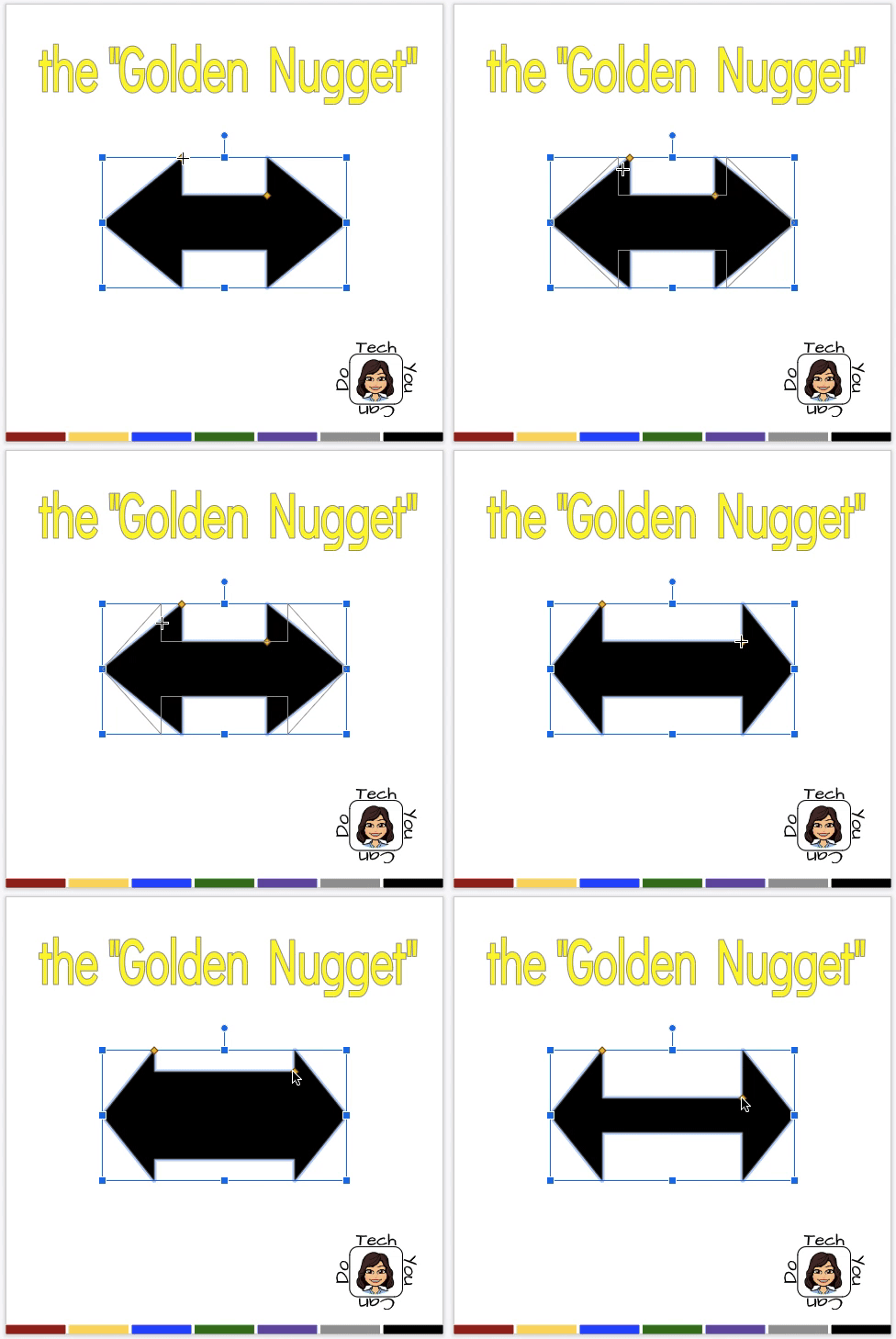
Have you inserted a shape into your Google Slides or Drawing, and wish you could modify it somewhat? You can! This doesn't appear to be a widely known tool but once you know what to look for, you won't pass it up again!

Go ahead ... insert a shape. Look for the tiny "golden nugget". (P.s. some shapes have more than one!) If you see a golden nugget, click on it and move it. You can adjust the shapes! 


Image from Gyazo 

Don't be afraid to check out what the "golden nugget" can do for you on other shapes, too!

Saturday, April 28, 2018

"Better" Online Searches

GOOGLE DRAWING → Feel Free to Make Your Own Copy

As a teacher, content isn't always for you to "give" to your students. There is a LOT of value in teaching your students how to find content on their own. I think of the "if you give a man a fish, he'll eat for a day, BUT if you teach him TO fish, he'll feed himself for life" story ... 

Kids of all ages can definitely use some guidance on how to find "better" information. There are some simple ways to do this. A few quick tips can equal better results which equals better learning. And in that case, EVERYONE is a winner!


Wednesday, April 25, 2018

G Suite Status Dashboard


Have you ever been trying to access a Google product and it just doesn't work? It doesn't happen often, but when it does, are you like me ... do you question your abilities? 

As awesome as Google is, sometimes it has it's down times. Have no fear! There is a website you can check whether it's on your end or on Google's end. At this website, current status is displayed for each app individually. While it won't fix the issue, you at least know!

I love the color-coding, too!


Tuesday, April 24, 2018

Troubleshooting Tips for Teachers

GOOGLE DRAWING → Feel Free to Make Your Own Copy

Just as there are tips your students can learn and use to troubleshoot their Chromebooks, there are things YOU can do! Check out these 5 tips to help YOU be a troubleshooter. 


My go-to tip is #4 ... this works not just on Chromebooks, but on laptops, desktops, and phones! 😎


💻 Chromebook Troubleshooting Tips for Students

Monday, April 23, 2018

Touchpad (Trackpad) Shortcuts

GOOGLE DRAWING → Feel Free to Make Your Own Copy

The trackpad/touchpad is a very important piece to a Chromebook (or laptop). But did you know it does FAR MORE than scrolling up and down on your web browser? Yes! Here are a few you might want to learn and use.


Sunday, April 22, 2018

Chromebook Troubleshooting Tips for Students

GOOGLE DRAWING → Feel Free to Make Your Own Copy

As a teacher, it's very powerful if you can teach your students how to fix their own mistakes. When you give students a Chromebook, this becomes even more necessary. 

Here are 5 simple troubleshooting tips you should not only teach, but expect your students to try BEFORE they come to you. 

*** I cannot say enough how completely powering down a Chromebook can solve a large majority of the issues students run into. If nothing else, make it a habit on Friday afternoons to completely power down. ***


Teachers ↬ 💻 Troubleshooting Tips for Teachers

Saturday, April 21, 2018

Special Chromebook Keys

GOOGLE DRAWING → Feel Free to Make Your Own Copy

These special Chromebook keys can be a bit of a mystery if you are new to Chromebooks. Some of these special keys are on your traditional computers, but you'll find not all of these are universal on PC's or Macs. Taking a little bit of time to make yourself & your students more comfortable with these keys will go a long way in increasing your comfort levels.


Friday, April 20, 2018

5 Advanced Keyboard Shortcuts

GOOGLE DRAWING → Feel Free to Make Your Own Copy

Keyboard shortcuts are great learn and use. They might only save you seconds, but over time, those seconds will add up! 


Thursday, April 19, 2018

Convert a PDF to a Google Doc


Have you ever been sent a PDF and needed (or wanted) to edit it? Feel stuck when you upload it to your Google Drive and you see the little red PDF icon and think to yourself ... bummer.

Be bummed no more!!!

The article linked above has a great step-by-step on the conversion. I love these tips! Check out more (I'll continue to add to them over time) by clicking the label "Google Tip" on this blog.


Tuesday, April 17, 2018

10 Basic Keyboard Shortcuts

GOOGLE DRAWING → Feel Free to Make Your Own Copy

These 10 basic keyboard shortcuts are ones I use on a daily basis. Committing these to memory - and teaching them to your students - are invaluable. If you make your own copy, you can share these with your students, or even print them out to hang!

*Note - swap out the "ctrl" key for the "command" key on a Mac for the same shortcuts!